PyInstaller逆向——解包问题解析与工具使用
本文主要记录解包 PyInstaller 打包文件时遇到的问题及工具的使用方法,相当于对网上教程的一个总结,不涉及反混淆等高级逆向技术。
1. PyInstaller 解包
使用方法:在终端中执行
python pyinstxtractor.py
注:执行时如果提示python版本问题,需要使用正确的python版本执行。
这个项目是 pyinstxtractor 的一个分支。
pyinstxtractor-ng 使用 xdis 库来解包 Python 字节码,因此不需要使用用于构建可执行文件的相同 Python 版本。
Pyinstxtractor-ng 还支持自动解密加密的 pyinstaller 可执行文件。
使用方法:
$ pyinstxtractor-ng
在线使用:PyInstaller Extractor WEB
使用方法:
$ python pyinst-repacker.py extract
注意:①执行前请确保安装了 lxml 和 lief 依赖,可以使用pip安装
pip install lxml lief -i https://pypi.tuna.tsinghua.edu.cn/simple
②仅限 Python 3,不支持加密的 PYZ
③建议使用打包文件使用的python版本执行
另外,此项目还提供了重新打包的功能,在终端中执行:
python pyinst-repacker.py build <目录>
(可选)使用–scanpy
$ python pyinst-repacker.py build –scanpy test.exe-repacker
(可选)使用–ignore-missing
$ python pyinst-repacker.py build test.exe-repacker
2. pyc文件编译与反编译
2.1 pyc反编译
- 在线反编译网站:
-
-
- 本地反编译工具:
-
-
- uncompyle6(可直接pip install,对3.9以上的支持性不好)
本地反编译pyc的操作方法大致相同:
$ uncompyle6 -o test.py test.pyc
$ pycdc test.pyc > test.py
$ pycdas test.pyc > test.txt #转为字节码
2.2 py编译为pyc
使用py_compile编译
$ python -m py_compile test.py
或
$ python -m compileall <指定文件或目录>
3. Pyinstaller重打包
4.实战
4.1 第一个程序
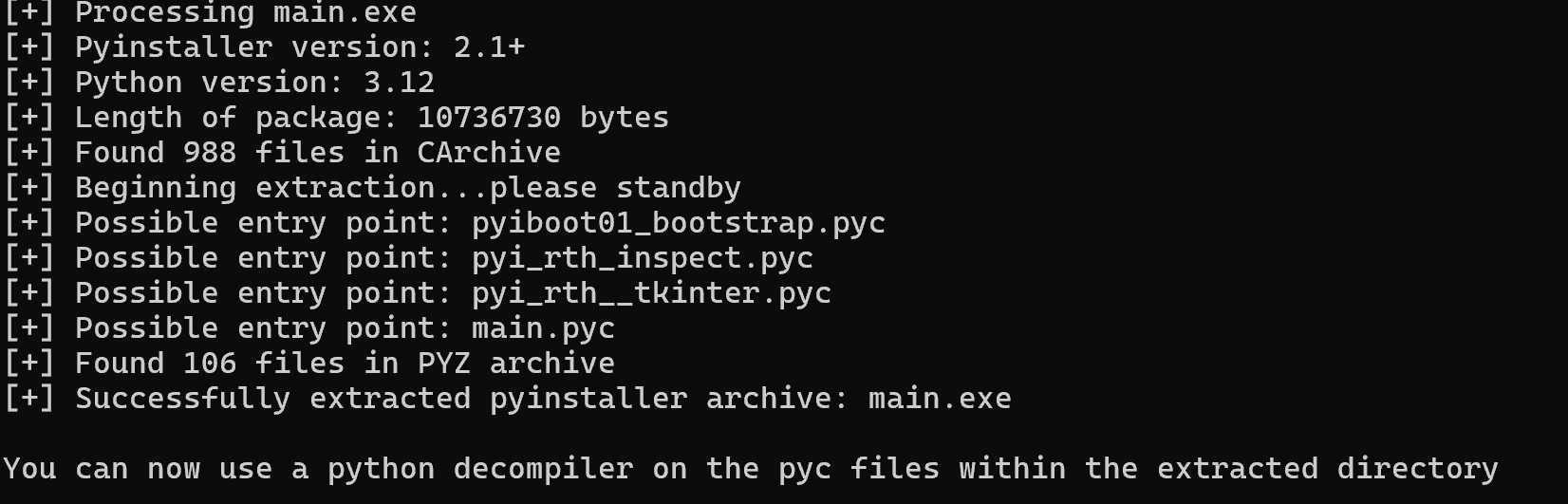
首先使用pyinstxtractor-ng解包:
进入解包文件夹:
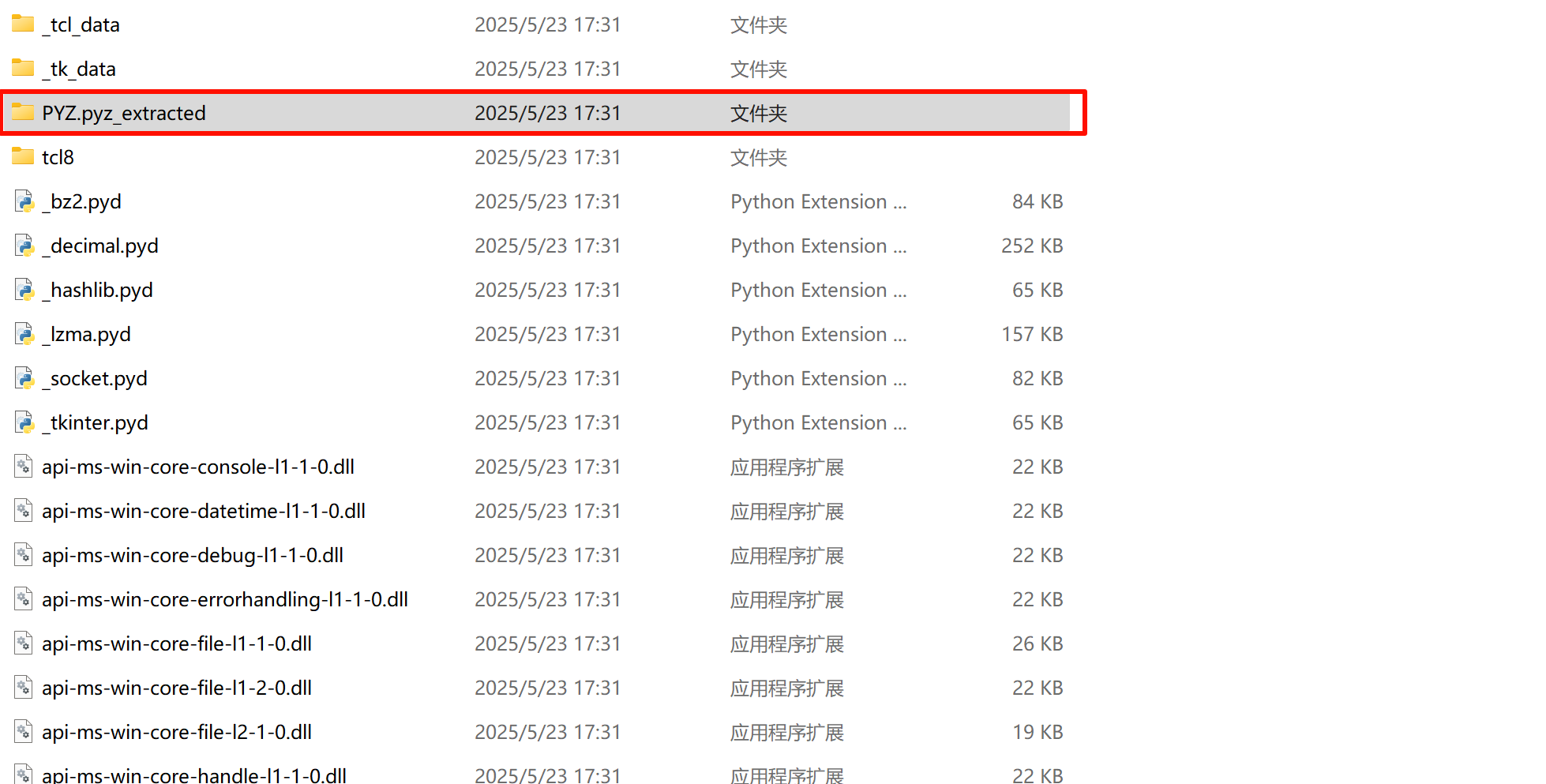
将PYZ.pyz_extracted文件夹里的文件全部无脑复制到上一级文件夹里
尝试直接运行main.pyc,观察是否缺少环境

运行成功!现在可以进行反编译操作了
打开PyLingual网站,将main.pyc拖入
得到反编译后的代码:
1
2
3
4
5
6
7
8
9
10
11
12
13
14
15
16
17
18
19
20
21
22
23
24
25
26
27
28
29
30
31
32
33
34
35
36
37
38
39
40
41
42
43
44
45
46
| \
\
\
\
import tkinter as tk
from tkinter import messagebox
CORRECT\_USERNAME = 'test'
CORRECT\_PASSWORD = '123456'
def login():
username = entry\_username.get()
password = entry\_password.get()
if username == CORRECT\_USERNAME and password == CORRECT\_PASSWORD:
root.destroy()
open\_main\_window(username)
else:
messagebox.showerror('登录失败', '用户名或密码错误!')
def open\_main\_window(username):
main\_window = tk.Tk()
main\_window.title(f'欢迎, {username}')
main\_window.geometry('400x300')
label\_welcome = tk.Label(main\_window, text=f'欢迎回来, {username}!', font=('Arial', 16))
label\_welcome.pack(pady=20)
label\_info = tk.Label(main\_window, text='这是您的主界面', font=('Arial', 12))
label\_info.pack(pady=10)
btn\_exit = tk.Button(main\_window, text='退出', command=main\_window.quit, bg='red', fg='white')
btn\_exit.pack(pady=20)
main\_window.mainloop()
root = tk.Tk()
root.title('登录')
root.geometry('300x200')
label\_title = tk.Label(root, text='用户登录', font=('Arial', 14))
label\_title.pack(pady=10)
label\_username = tk.Label(root, text='用户名:')
label\_username.pack()
entry\_username = tk.Entry(root)
entry\_username.pack()
label\_password = tk.Label(root, text='密码:')
label\_password.pack()
entry\_password = tk.Entry(root, show='\*')
entry\_password.pack()
btn\_login = tk.Button(root, text='登录', command=login, bg='blue', fg='white')
btn\_login.pack(pady=20)
root.mainloop()
|
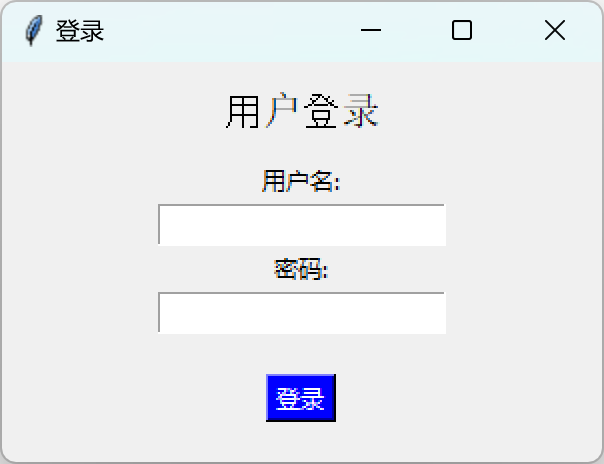
可以看到用户名和密码,很简单吧
重打包就不演示了
4.2 第二个程序
这个程序是我很久之前弄的了,这里就简单说下逆向过程中遇到的问题
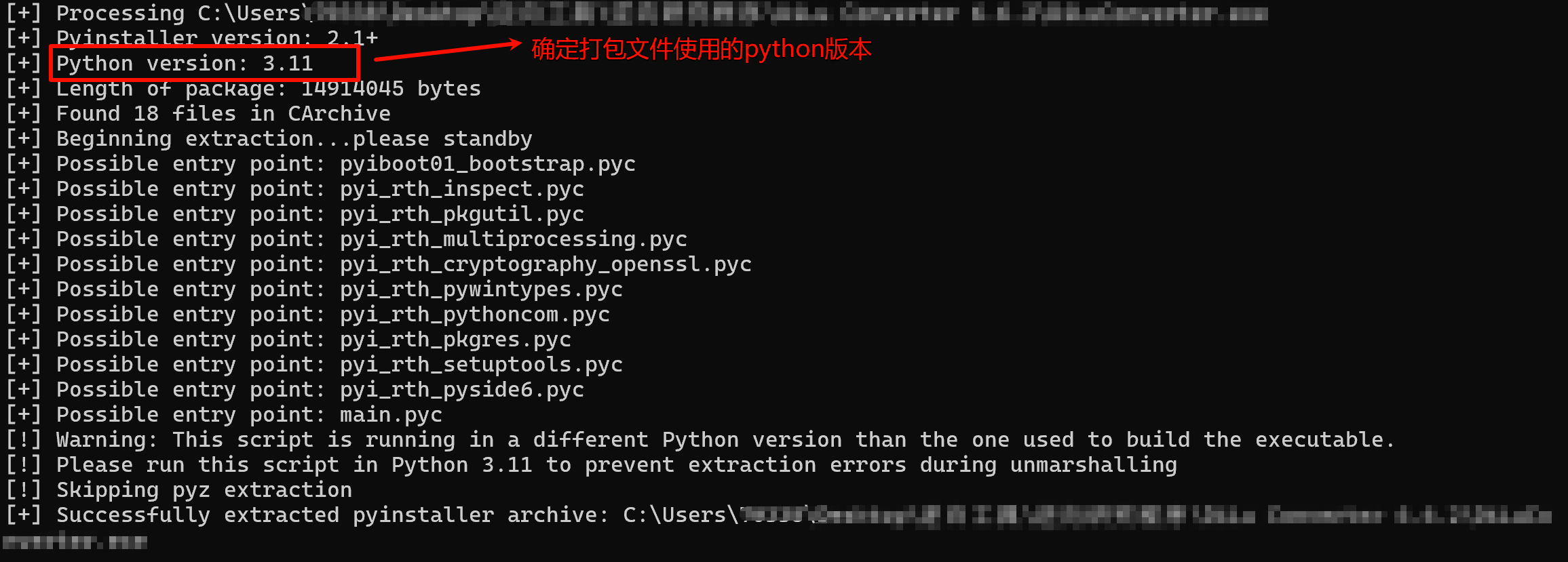
①确定python版本
使用“安全分析工具”找到运行中的程序,快速确定具体python版本
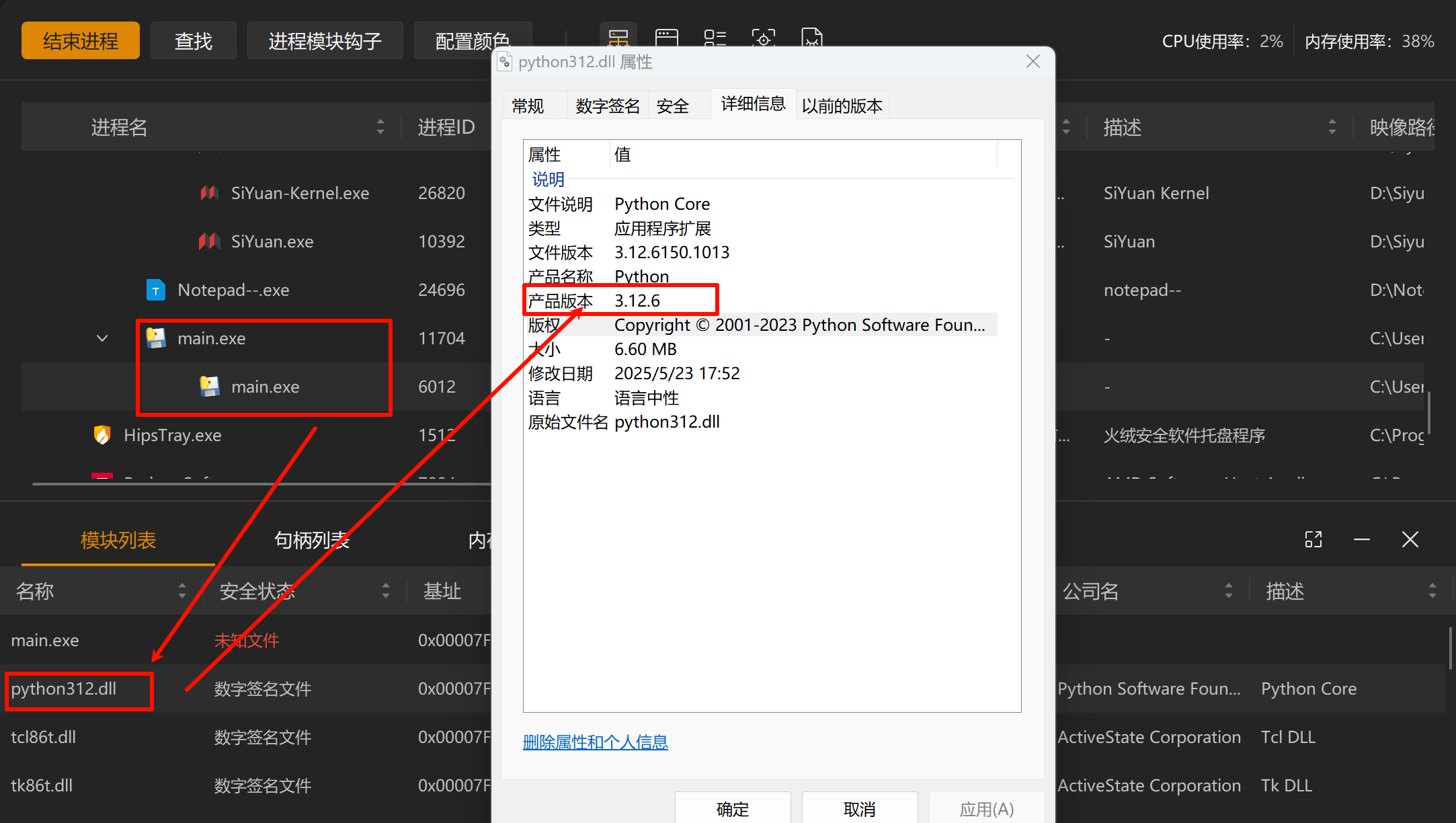
②重打包不全
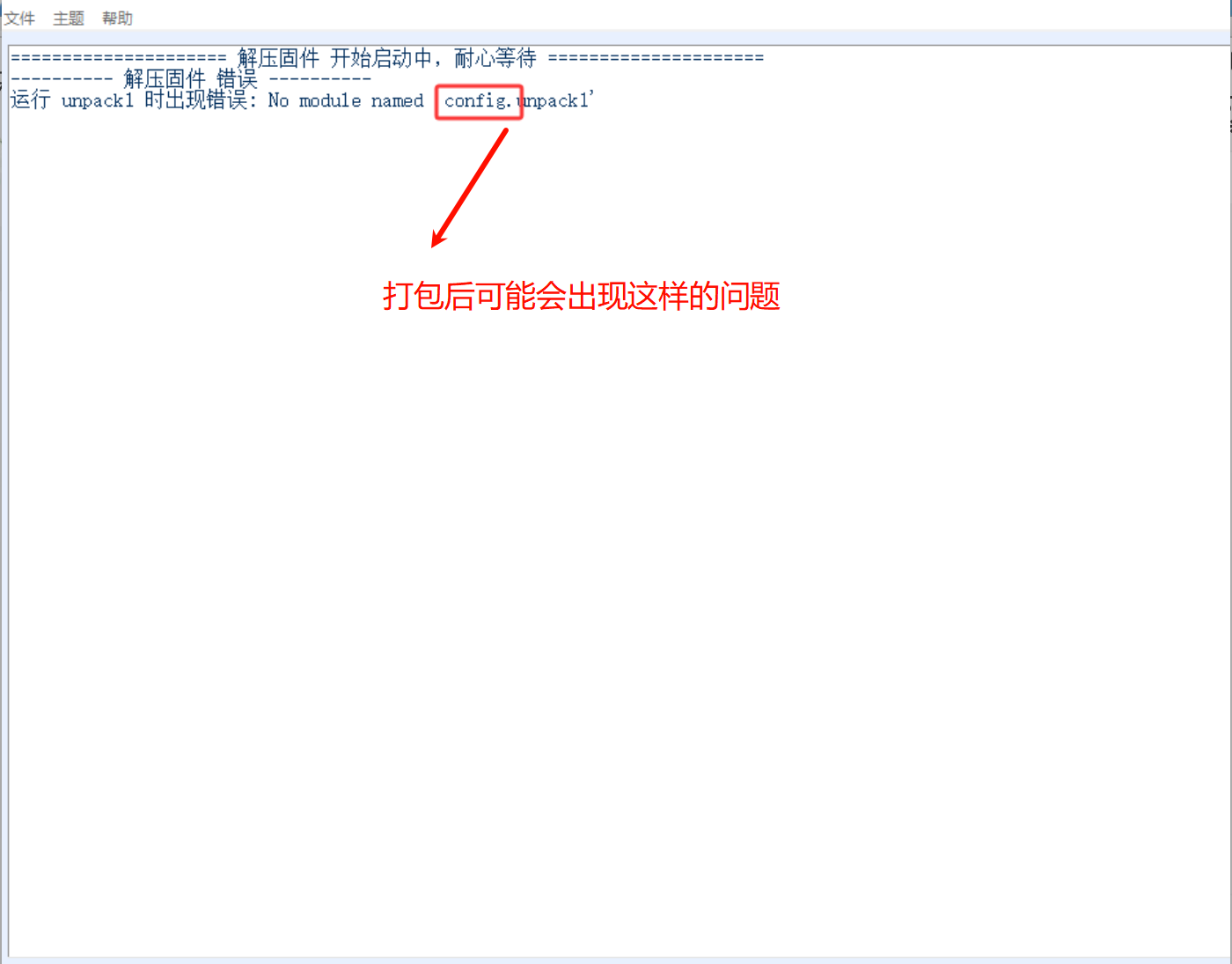
可以尝试用以下脚本打包pyinstaller main.spec
1
2
3
4
5
6
7
8
9
10
11
12
13
14
15
16
17
18
19
20
21
22
23
24
25
26
27
28
29
30
31
32
33
34
35
36
37
38
39
40
41
42
43
44
45
46
47
48
| import os
import sys
block\_cipher = None
script\_dir = os.path.dirname(os.path.abspath(sys.argv\[0\]))
a = Analysis(
\['main.py'\],
pathex=\[script\_dir\],
binaries=\[\],
datas=\[("tkinter", "tkinter")\],
hiddenimports=\[
'tkinter',
'platform',
'inspect'
\],
hookspath=\[\],
hooksconfig={},
runtime\_hooks=\[\],
excludes=\[\],
win\_no\_prefer\_redirects=False,
win\_private\_assemblies=False,
cipher=block\_cipher,
noarchive=False,
)
pyz = PYZ(a.pure, a.zipped\_data, cipher=block\_cipher)
exe = EXE(
pyz,
a.scripts,
a.binaries,
a.zipfiles,
a.datas,
\[\],
name='main',
debug=False,
bootloader\_ignore\_signals=False,
strip=False,
upx=True,
upx\_exclude=\[\],
runtime\_tmpdir=None,
console=False,
disable\_windowed\_traceback=False,
argv\_emulation=False,
target\_arch=None,
codesign\_identity=None,
entitlements\_file=None,
)
|